
Finding the best free video editor for Windows in 2026 isn’t just about avoiding watermarks anymore—it’s about finding the right balance between AI-powered efficiency and professional-grade control. Whether you are cutting a 15-second TikTok or a 4K feature film, the software landscape has shifted.
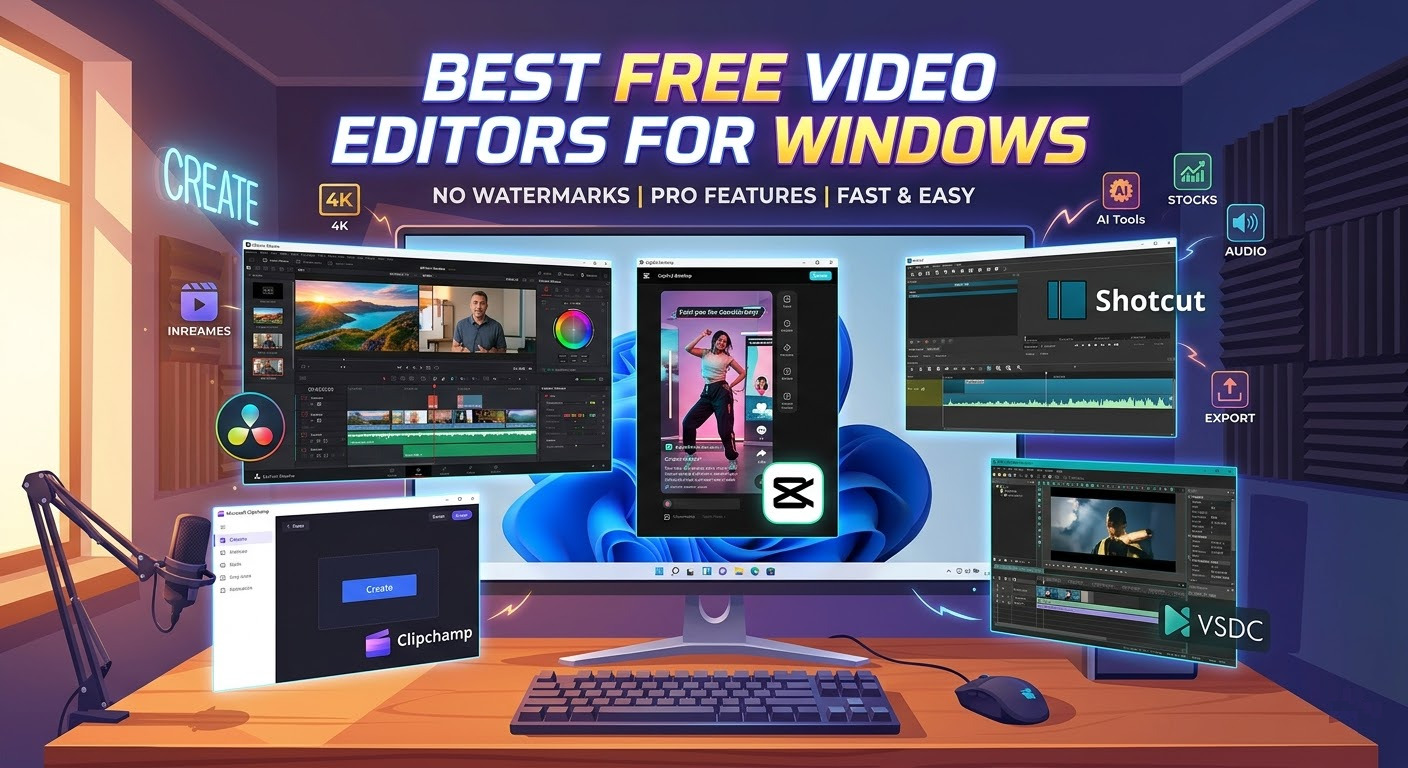
In this guide, we break down the top-rated free tools that offer premium power without the monthly subscription.
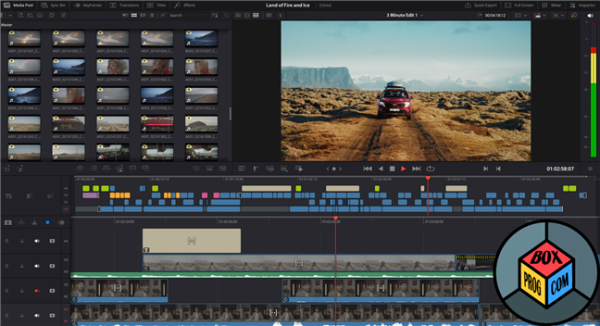
1. DaVinci Resolve: The Gold Standard for Pros
If you want the exact same tools used in Hollywood blockbusters, DaVinci Resolve is the undisputed king. While there is a paid “Studio” version, the free version is incredibly generous.
-
Best For: Aspiring filmmakers, colorists, and high-end YouTubers.
-
Standout Feature: Magic Mask & AI Voice Isolation. In 2026, Resolve’s AI tools allow you to track objects and clean up audio with a single click.
-
Pros: World-class color grading, Fairlight audio post-production, and Fusion visual effects.
-
Cons: High system requirements; requires a dedicated GPU.
2. CapCut Desktop: The Social Media Powerhouse
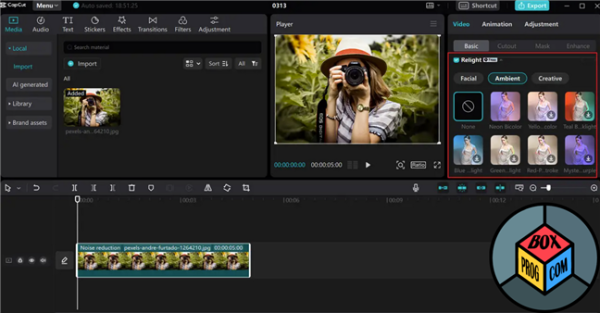
Owned by ByteDance, CapCut has evolved from a mobile app into a dominant desktop force. It is the fastest way to create trending content for TikTok, Reels, and Shorts.
-
Best For: Content creators and social media managers.
-
Standout Feature: Auto-Captions & Trendy Templates. It can transcribe your video into stylized subtitles in seconds.
-
Pros: Massive library of royalty-free music, filters, and transitions.
-
Cons: Limited advanced color grading; heavy focus on short-form vertical video.
3. Shotcut: The Open-Source Workhorse
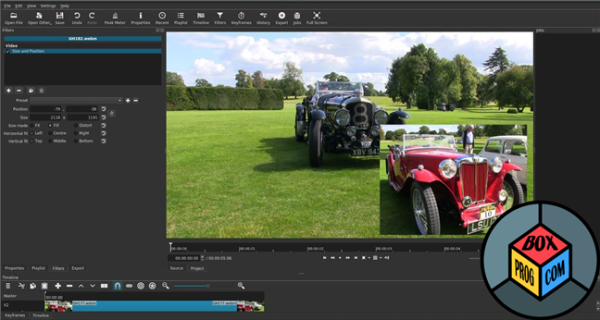
For those who value privacy and hate “account logins,” Shotcut remains the best open-source alternative. It supports a massive range of formats thanks to its FFmpeg backend.
-
Best For: Users who want a lightweight, offline, and 100% free experience.
-
Standout Feature: Native Timeline Editing. No need to import files into a project library; just drag, drop, and edit.
-
Pros: Completely free (no “Pro” upsells), supports 4K and ProRes.
-
Cons: The interface has a steeper learning curve compared to modern “drag-and-drop” editors.
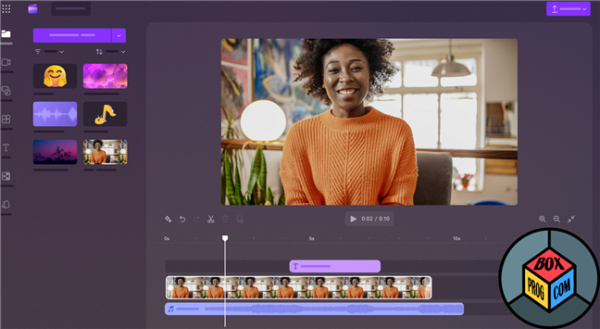
4. Microsoft Clipchamp: The Built-in Convenience
Windows 11 and 12 users already have a powerful editor pre-installed. Clipchamp has received major updates in 2026, integrating deeper with OneDrive and AI.
-
Best For: Quick business presentations and casual home movies.
-
Standout Feature: AI Video Generator. Provide a few clips and a theme, and Clipchamp will cut a montage for you.
-
Pros: No installation required; excellent stock footage and image integration.
-
Cons: Export limited to 1080p in the basic free tier; requires an internet connection for many features.
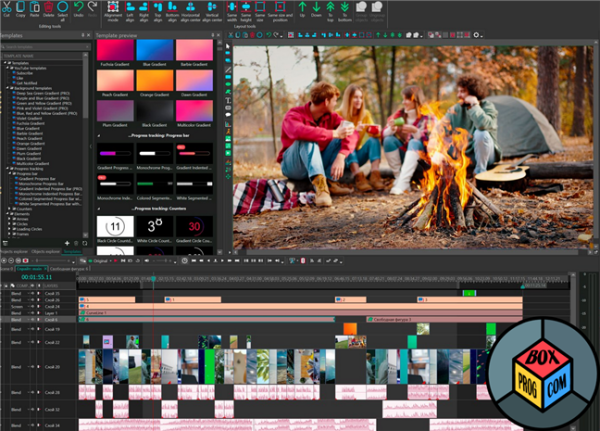
5. VSDC Free Video Editor: Best for Older PCs
If you don’t have a high-end gaming rig, VSDC is your best bet. It is optimized to run smoothly on hardware that other editors would crash.
-
Best For: Laptops and older Windows systems.
-
Standout Feature: Non-Linear Editing. Place objects anywhere on the timeline and overlay them easily.
-
Pros: Very low RAM usage; includes a built-in screen recorder and voice-over tool.
-
Cons: The interface feels a bit dated compared to CapCut or Resolve.
Comparison Table: At a Glance
| Software | Skill Level | Best Use Case | Watermark? |
| DaVinci Resolve | Advanced | Cinematic/Pro Video | No |
| CapCut | Beginner | TikTok/Social Media | No* |
| Shotcut | Intermediate | General Purpose | No |
| Clipchamp | Beginner | Quick Edits/Office | No |
| VSDC | Intermediate | Older Hardware | No |
Final Verdict: Which One Should You Download?
-
Choose DaVinci Resolve if you want to learn the craft of professional editing.
-
Choose CapCut if you need to post a viral video in under 10 minutes.
-
Choose Shotcut if you want a permanent, “no-strings-attached” tool on your hard drive.
Editing is no longer about the price tag—it’s about your workflow. All five of these tools will help you produce high-quality content without spending a dime.
FAQ Section
Frequently Asked Questions
Q1: Which free video editor for Windows has no watermark?
A: As of 2026, the best free video editors for Windows with no watermark are DaVinci Resolve, CapCut (Desktop), Shotcut, and VSDC Free Video Editor. While some tools require a pro subscription for premium effects, these options allow you to export high-quality video without any forced branding.
Q2: Is there a free video editor for Windows 10/11 that is good for beginners?
A: For beginners, we highly recommend CapCut or Microsoft Clipchamp. They feature intuitive drag-and-drop interfaces, built-in templates, and AI-powered tools that make editing fast and easy without a steep learning curve.
Q3: Can I edit 4K video for free on Windows?
A: Yes. DaVinci Resolve is the industry standard for free 4K editing and advanced color grading. However, ensure your PC has at least 16GB of RAM and a dedicated GPU for a smooth 4K workflow.
Q4: Does Windows 11 have a built-in video editor?
A: Yes, Windows 11 includes Microsoft Clipchamp as its native video editor. It is a web-based but powerful tool that offers essential editing features, stock media, and direct export to social media platforms.
Expert Insight: Choosing the Right Tool in 2026
“After testing dozens of video suites over the past year, my biggest takeaway for 2026 is that the gap between ‘free’ and ‘paid’ software has nearly vanished. > If you are an aspiring YouTuber or a social media creator, don’t overcomplicate things—start with CapCut or Clipchamp. Their AI-driven auto-captions and background removal tools save hours of manual work. However, if you’re looking to build a career in cinematography, DaVinci Resolve remains the only logical choice. It’s a professional-grade Hollywood tool that happens to be free.
My Pro Tip: Always check your hardware specs before installing. Most modern editors now rely heavily on GPU acceleration. If you’re working on an older laptop, stick to Shotcut or VSDC—they are much lighter on system resources than the AI-heavy alternatives.”
Recommended Software for Windows:

 Loading...